

Frequently Asked Questions
Other
Support and Troubleshooting
MANTECH Pro Software™
How do I create a shortcut button in MANTECH Pro software?
- To start, you must be in the Setup → Run Configuration screen.
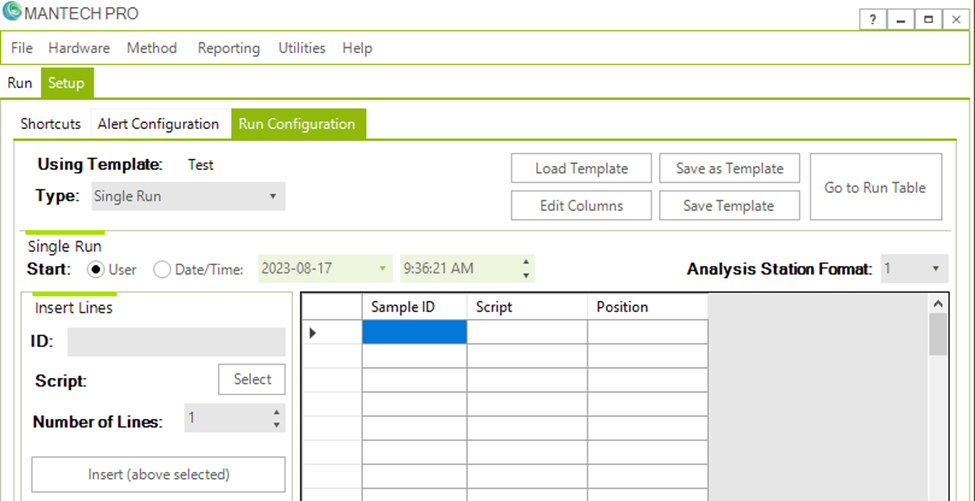
- Fill out the run table with the respective Sample IDs, Scripts, and Positions you wish the Shortcut button should load. Save As a Template and Define run template name.
- In this Example, I will create a Shortcut button to load a Calibration and a QC Check.
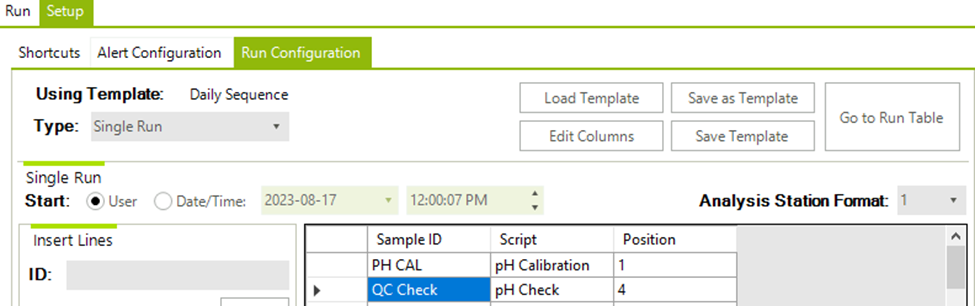
- In this Example, I will create a Shortcut button to load a Calibration and a QC Check.
- Navigate to Setup/Shortcuts screen. On the bottom right, select Edit.
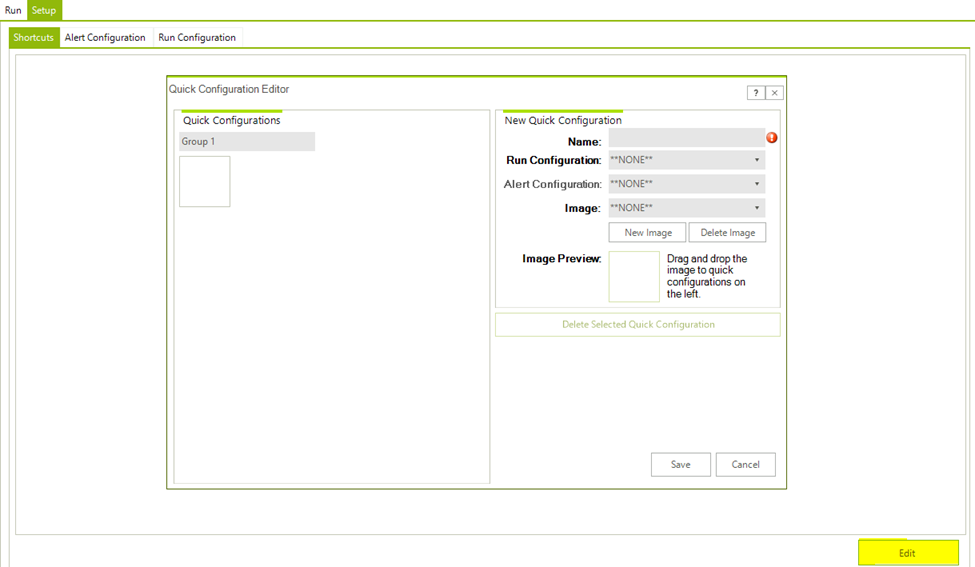
- The following information is required when creating the shortcut button:
- Name: User-Defined
- Run Configuration: Selected from the Drop down menu
- Image: Select an existing Image or add a New Image
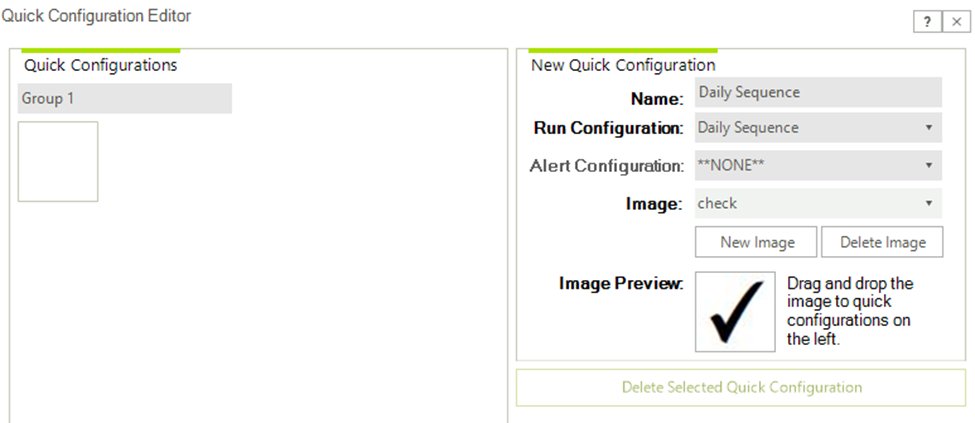
- Drag and Drop the Image from the Image Preview over to the left-hand side to an available open Blank box. Note: You may also edit each section of shortcut buttons here as well.
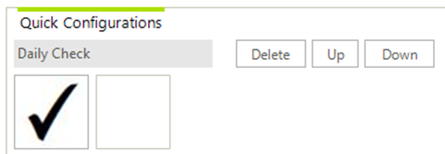
6. Repeat steps 1-5 for each shortcut button. Click Save when finished.
Get Smarter Solutions, Today.
Our innovative water and wastewater analyzers have faster, safer processes, with fewer hazardous reagents. Start using MANTECH solutions for more accurate data that drives responsible outcomes.