

Frequently Asked Questions
BOD Analyzer
BOD Pro Software™
Does MANTECH offer barcoding in BOD Pro Software™?
Yes, we do offer barcoding options in BOD Pro Software™. Barcoded labels will help you quickly identify results. Barcoded options are available and additional hardware is required.
What are shortcuts in BOD Pro Software™?
Shortcuts are customizable buttons that users can create from pre-saved templates generated on the Run Configuration table. Shortcuts can have their own unique images and be organized by custom headers.
How will I be notified when there is a new BOD Pro software™ update?
At MANTECH, we are continuously updating our software and adding new features. You will receive push notifications if you are connected to the network or if you have an internet connection. If you are offline, you will receive a direct email from MANTECH.
What languages are supported by BOD Pro Software™?
BOD Pro Software™ is now available in several languages. BOD Pro Software™ supports the following languages:
- Arabic
- Greek
- English
- Spanish
- French
- Hindi
- Italian
- Japanese
- Korean
- Malay
- Punjabi
- Polish
- Portuguese
- Swedish
- Tamil
- Thai
- Urdu
Is BOD Pro Software™ compatible with my LIMS?
Yes! BOD Pro Software™ is agnostic, and our CSV import/export functionality is easy-to-use and flexible with all LIMS (laboratory information management system).
What are the computer specifications to operate BOD Pro Software™?
BOD Pro Software™ requires a computer with Windows 10/11 Pro OS. View PDF for minimum computer requirements here.
What DO meter is required for BOD Pro Software™?
BOD Pro Software™ supports YSI MultiLab 4010-1W DO meters. A manual data entry option allows customers to use alternative DO meters. Note: BOD Pro Software does not support the YSI MultiLab 4010-1, 4010-2, and 4010-3 models.
What is BOD Pro Software™?
Following months of BETA testing, in early 2022, MANTECH has released new software called BOD Pro Software™. BOD Pro Software™ is a lab automation software that is entailed to operate our automated and manual BOD Pro analyzers with plenty of features that analysts desire to streamline their BOD analysis process such as, performing calculations and generating reports.
PC-BOD Upgrade
Will BOD Pro Software™ operate with the hardware I currently have?
BOD Pro Software™ has been designed for MANTECH’s latest hardware releases and is not compatible with PC-BOD hardware. BOD Pro Software™ has been designed for MANTECH’s latest hardware releases and is not compatible with PC-BOD hardware. Hardware trade-in offers are available for existing PC-BOD customers. Please note: Service and support for PC-BOD software ends June 30, 2026 and PC-BOD hardware ends December 31, 2027.
General Information
BOD Pro Software™ detects the optimal time to automatically turn on the stirrer while taking DO readings. This feature improves operational efforts for analysts and streamlining your runs.
MANTECH’s BOD Pro analyzers utilize one of two dissolved oxygen probes from YSI for automated dissolved oxygen determination. View the measuring ranges of both probes, along with links to their complete specification sheets here.
Is the stirrer turned on manually or automatically?
BOD Pro Software™ detects the optimal time to automatically turn on the stirrer while taking DO readings. This feature improves operational efforts for analysts and streamlining your runs.
Other
Support and Troubleshooting
BOD Pro Software™
How do you calculate seed correction and BOD?
To learn how to calculate Seed Correction and BOD, please refer to this document. In BOD Pro Software™, two separate values for Seed Correction Factor are stored along with the Run; one is referred to as BODSeedCorrection, and the other CBODSeedCorrection. The way we calculated BODSeedCorrection in BOD Pro is as follows: 1. Dividing the depletion of each BOD Seed bottle by its own volume (the seed volume), the resulting quantity is referred to as DepletionPerMLSeed, 2. and then we average the DepletionPerMLSeed over all the BOD Seed bottles. CBOD Seed Correction was calculated by doing the same on CBOD Seed bottles. The software allows for only one Seed ID to be included in the Run. There can be any number of BOD or CBOD Seed bottles within that Seed ID group.
Is PC-BOD software compatible with Windows 10 or 11 Pro OS?
As a result of major security updates Microsoft has implement, MANTECH cannot guarantee that PC-BOD software will operate if updates in Windows 10 or 11 Pro operating systems. PC-BOD software can operate in virtual mode however, this leaves the analyzer vulnerable to viruses (leading to corrupted databases) and could impact the software when Windows updates are performed. Here is some more information about everything you need to know before updating to Windows 10…read more. In 2021, MANTECH introduced a line of all new hardware and BOD Pro Software™ designed for Windows 10 and 11 Pro OS – meaning that all security and OS updates can run concurrently.
There are a few different options to move forward:
- Install PC-Titrate on Windows 10 computer (no guarantee).
- Replace the entire system (all new hardware and software) with a trade-in discount for your existing system.
To discuss your options, please contact our team here.
How to setup DO stability settings in BOD Pro Software™?
Procedure:
- Navigate to Template/Scripts, then select Load Scripts.
- Quickest way to get started is loading the current script responsible for reading Initial/Final DOs (the instructions will be based on a single probe configuration) :
- Select the Initials Read script, then click Load (✔).
- Select Save As and define the script to be easily identified later (i.e. Initial Read Single Probe DO Stability).
- Double-click on the DO Read script action:
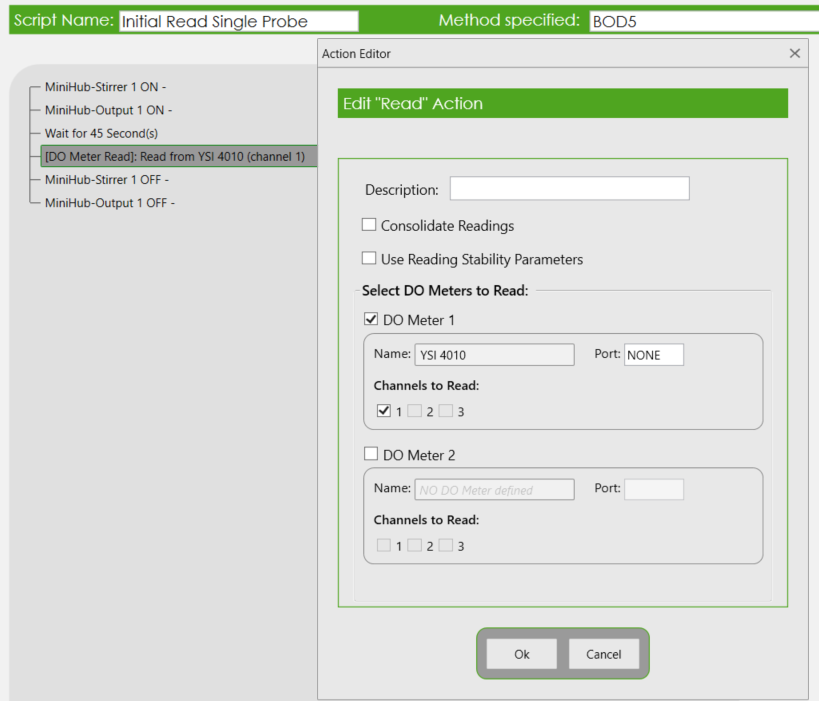
- Click on the ‘use Reading Stability Parameters‘ checkbox to enable the stability options feature.
- ΔDO: Change in Dissolved Oxygen.
- ΔT: Change in Time.
- Max Time: Maximum duration (i.e. Timeout).
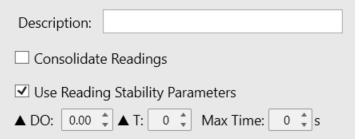
- MANTECH recommends the following Set Time stability settings shown below. Therefore, Max Time could be set based on this information, if the DO stability did not meet the configured stability criteria:
- Optical Probe: Initials 45 seconds, Finals 90 seconds
- Membrane Probe: Initials/Finals 45 seconds
- After entering in the desired values, click OK.
- Important Note: The set time of 45 seconds or 90 seconds above the DO read action should be removed. If it is not removed, the sequence will wait the set time, and then enter into the DO stability settings configured above. Click Save Script once completed.
- Repeat steps 3-9 for Finals.
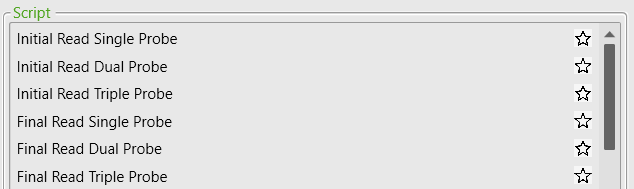
- Now, the main BOD sequence needs to be updated with these new read sequences. Click Load and find the main sequence used in standard operating BOD runs (Hint: The sequence might be favorited for easier referencing).
- Expand the Logic Condition ‘If (Processing Initials) Else‘ to expose the current read scripts.
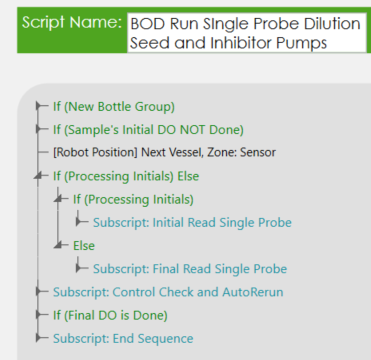
- Before removing the current scripts, it is easier to insert the new read scripts. Select the current read subscript first, then in the Dropdown menu beside Action, select Subscript. Then, click the Insert button. Select the respective read subscript.
- It is important that the script designated for Initials and Finals is added into the correct section of this Logic condition.
- The If holds the Initials read script sequence
- The Else holds the Finals read script sequence.
- After adding in the new read sequences, remove the previous scripts by selecting the script and using the Delete Scripts button.
- Click Save when completed.
Need assistance? Contact our technical support team here.
How do I setup a run in BOD Pro Software™ in which a bottle was pre-filled with dilution water or seed?
Procedure:
- Navigate to Template/Run Screen Settings.
- The main Run Screen adjusted will be the Initial BOD (i.e. Run Initials).
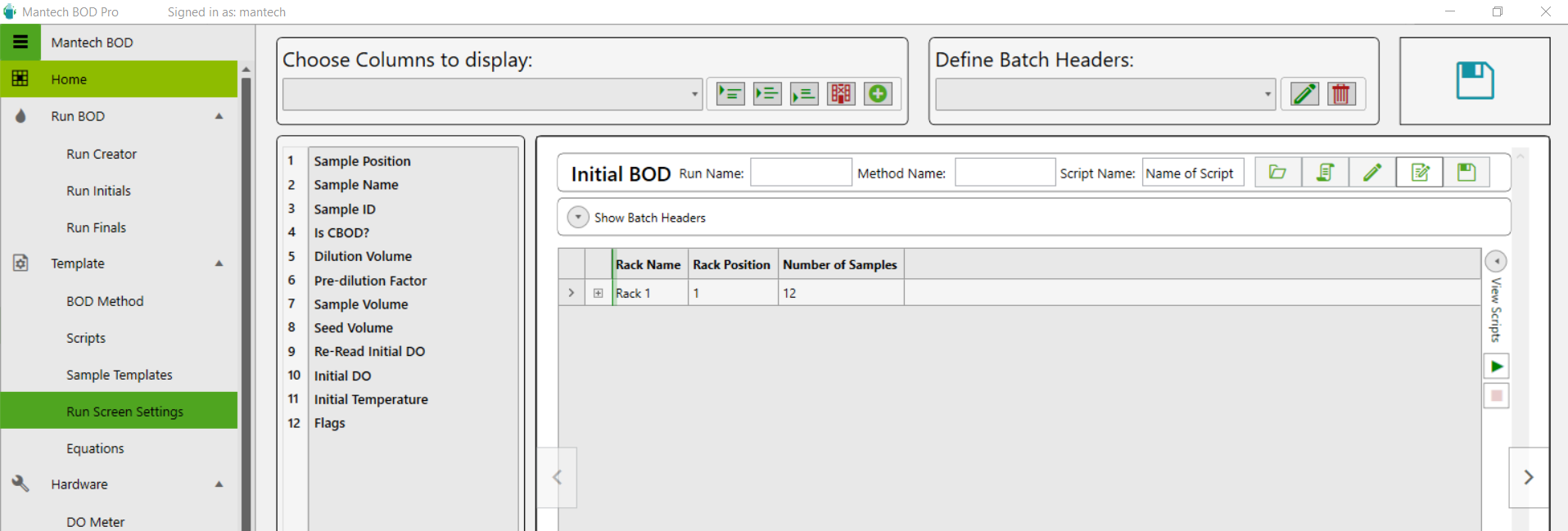
- The main Run Screen adjusted will be the Initial BOD (i.e. Run Initials).
- At the top, under the section called Choose Columns to display, there is a dropdown menu that will list all the possible columns that could appear on the Initials run screen. Locate ‘Dilution Added?’ and ‘Seed Added?’.
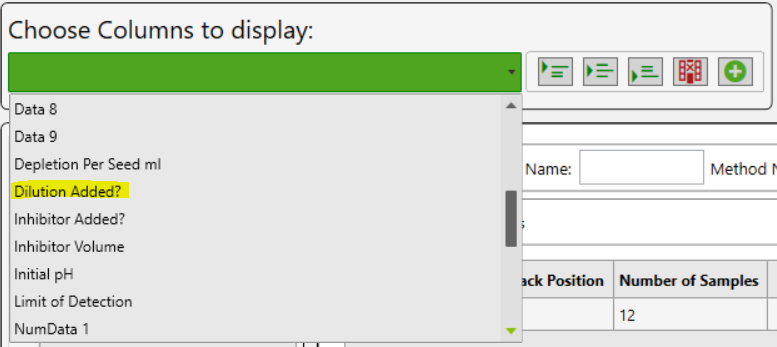
- Use any of the three options to insert into the list of columns down below.
- The column can be selected, then dragged into the desired position.

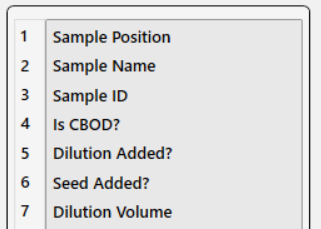
- The column can be selected, then dragged into the desired position.
- Repeat for all desired columns, and then click Save located on the top right of the screen.
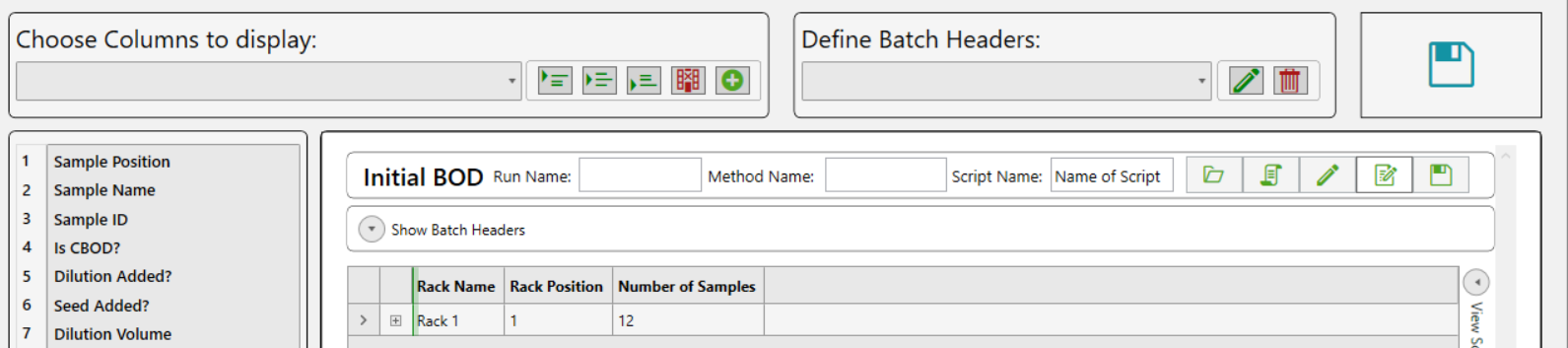
- Runs loaded on the Run Initials Screen will display the new additional columns. Simply check the checkbox if one or all of the reagent options were dispensed/pre-filled in the bottle.

Need assistance? Contact our technical support team here.
Hardware
My DO meter isn’t communicating to BOD Pro Software™. Is there a way to reset it?
First, confirm the correct COM port is selected. If this does not work, you will need to the reset the meter’s firmware. For step-by-step instructions, view PDF here.
Get Smarter Solutions, Today.
Our innovative water and wastewater analyzers have faster, safer processes, with fewer hazardous reagents. Start using MANTECH solutions for more accurate data that drives responsible outcomes.