

Frequently Asked Questions
BOD Analyzer
BOD Pro Software™
Does MANTECH offer barcoding in BOD Pro Software™?
Yes, we do offer barcoding options in BOD Pro Software™. Barcoded labels will help you quickly identify results. Barcoded options are available and additional hardware is required.
How will I be notified when there is a new BOD Pro software™ update?
At MANTECH, we are continuously updating our software and adding new features. You will receive push notifications if you are connected to the network or if you have an internet connection. If you are offline, you will receive a direct email from MANTECH.
What are the computer specifications to operate BOD Pro Software™?
BOD Pro Software™ requires a computer with Windows 10/11 Pro OS. View PDF for minimum computer requirements here.
What is BOD Pro Software™?
Following months of BETA testing, in early 2022, MANTECH has released new software called BOD Pro Software™. BOD Pro Software™ is a lab automation software that is entailed to operate our automated and manual BOD Pro analyzers with plenty of features that analysts desire to streamline their BOD analysis process such as, performing calculations and generating reports.
PC-BOD Upgrade
Will BOD Pro Software™ operate with the hardware I currently have?
BOD Pro Software™ has been designed for MANTECH’s latest hardware releases and is not compatible with PC-BOD hardware. BOD Pro Software™ has been designed for MANTECH’s latest hardware releases and is not compatible with PC-BOD hardware. Hardware trade-in offers are available for existing PC-BOD customers. Please note: Service and support for PC-BOD software ends June 30, 2026 and PC-BOD hardware ends December 31, 2027.
General Information
BOD Pro Software™ detects the optimal time to automatically turn on the stirrer while taking DO readings. This feature improves operational efforts for analysts and streamlining your runs.
MANTECH’s BOD Pro analyzers utilize one of two dissolved oxygen probes from YSI for automated dissolved oxygen determination. View the measuring ranges of both probes, along with links to their complete specification sheets here.
MT Analyzer
MANTECH Pro Software™
How will I be notified when there is a new MANTECH Pro Software™ update?
At MANTECH, we are continuously updating our software and adding new features. You will receive push notifications if you are connected to the network or if you have an internet connection. If you are offline, you will receive a direct email from MANTECH.
What are shortcuts in MANTECH Pro Software™?
Shortcuts are customizable buttons that users can create from pre-saved templates generated on Run Configuration table. Shortcuts can have its own unique image and be organized by custom headers.
Does MANTECH offer barcoding in MANTECH Pro Software™?
Yes, we do offer barcoding options in MANTECH Pro Software™. Barcoded labels will help you quickly identify results. Barcoded options are available and additional hardware is required
Is MANTECH Pro Software™ compatible with my LIMS?
Yes! MANTECH Pro Software is agnostic, and our CSV import/export functionality is easy-to-use and flexible with all LIMS (laboratory information management system).
What are the required computer specifications to operate MANTECH Pro Software?
MANTECH Pro Software™ will operate on computers with Windows 10 and 11 Pro OS.
Click here to view the minimum computer specifications.
What is MANTECH Pro Software™?
In October 2020, MANTECH has released new software called MANTECH Pro Software™. MANTECH Pro Software™ is a Lab Automation software that is entailed to operate our MT Series systems and PeCOD® analyzers with plenty of features that analysts desire. To learn more about MANTECH Pro Software™, click here for more information.
PC-Titrate Upgrade
What does it mean if I want to upgrade from PC-Titrate to MANTECH Pro Software™?
To ensure a seamless transition for all end-users, PC-Titrate and MANTECH Pro Software™ can run simultaneously from the same computer. Also, MANTECH Pro Software™ has backward compatibility and will operate with most existing hardware. Contact our team to discuss your options.
What will happen with the data on PC-Titrate? Will it be imported into MANTECH Pro Software™?
PC-Titrate can remain the computer currently operating your system and data can be viewed at anytime. Therefore, your data will not be lost and can be kept on that computer. Data saved/archived from PC-Titrate will not be able to be transferred onto MANTECH Pro Software™. Note: To avoid any complications while operating MANTECH Pro Software™, be sure to not use any actions in PC-Titrate that use the Interface, especially during a run on MANTECH Pro Software™.
Will MANTECH Pro Software™ operate the hardware I currently have?
MANTECH Pro will operate most of the hardware you currently have. The following hardware will require an upgrade:
- The old-style Burivar burets will have to be upgraded to our new MANTECH Burets. Burets are operated by an IP address, unique to each Buret, and will require an Ethernet-to-USB adapter we supply (setup will vary by system).
- The old-style Conductivity Meters (4310) will have to upgraded to our 4510 Conductivity Meters. COM port connection is no longer on the Interface but rather through a 1-port or 2-port USB-to-Serial adapter(s) (will vary on system setup).
- The old-style Turbidity Meters (Turbidity AssayPlus) will have to upgraded to our T10 Turbidity Meters.
- Computers Operating System (OS) that is not Windows 10 will not operate MANTECH pro. Minimum computer specifications are listed here.
With the increase in USB connections to the computer, a multi-USB 3.0 hub may also be required.
PDF version for download: Required Hardware Upgrades
Please note: Service and support for PC-Titrate software ended June 30, 2026.
I have an existing PC-Titrate. How do I upgrade and install MANTECH Pro Software™?
Note: Service and support for PC-Titrate software ended June 30, 2026 and PC-Titrate hardware ends December 31, 2027.
To upgrade and install MANTECH Pro Software™ is simple if you have a PC-Titrate. Once an order is placed, a member from MANTECH’s QC team will contact you for your active hinterland database. Once that information is verified, we will copy the methods to MANTECH Pro Software™ and send a USB with the needed adapters for the hardware.
If needed, a member of our team is available to schedule a meeting to ensure that the methods and reports are working to your specific needs.
How to install MANTECH Pro in 4 easy steps:
- Double click on the installer from the USB. Select “Yes” to proceed with the installation. Select “Next” once prompted and unselect “Read Me” once the installation is complete.
- Once the program has been installed, open the %programdata% folder on your computer by searching it in the taskbar. Once that has been opened, use the following pathway to find the folder \MANTECH\MANTECH PRO\Database.
- Add the DB.SQLite file from the USB to the database folder. Add the tray file from your USB to the Tray Files Folder and move the Documents folder from the USB to the MANTECH PRO Folder.
- You will now be able to register your MANTECH Pro Software™, using the product key and USB.
The best part, PC-Titrate and MANTECH Pro Software™ can operate on the same computer with the same hardware minimizing downtime and making the transition easy and risk-free!
PeCOD® COD/BOD Analyzer
General Information
How much bench space do I require for a typical PeCOD® L50 set-up?
The typical benchtop PeCOD® L50 set-up requires 36 inches x 18 inches of bench space which includes space for a laptop to access MANTECH Pro Software™
Other
Support and Troubleshooting
BOD Pro Software™
How do you calculate seed correction and BOD?
To learn how to calculate Seed Correction and BOD, please refer to this document. In BOD Pro Software™, two separate values for Seed Correction Factor are stored along with the Run; one is referred to as BODSeedCorrection, and the other CBODSeedCorrection. The way we calculated BODSeedCorrection in BOD Pro is as follows: 1. Dividing the depletion of each BOD Seed bottle by its own volume (the seed volume), the resulting quantity is referred to as DepletionPerMLSeed, 2. and then we average the DepletionPerMLSeed over all the BOD Seed bottles. CBOD Seed Correction was calculated by doing the same on CBOD Seed bottles. The software allows for only one Seed ID to be included in the Run. There can be any number of BOD or CBOD Seed bottles within that Seed ID group.
Is PC-BOD software compatible with Windows 10 or 11 Pro OS?
As a result of major security updates Microsoft has implement, MANTECH cannot guarantee that PC-BOD software will operate if updates in Windows 10 or 11 Pro operating systems. PC-BOD software can operate in virtual mode however, this leaves the analyzer vulnerable to viruses (leading to corrupted databases) and could impact the software when Windows updates are performed. Here is some more information about everything you need to know before updating to Windows 10…read more. In 2021, MANTECH introduced a line of all new hardware and BOD Pro Software™ designed for Windows 10 and 11 Pro OS – meaning that all security and OS updates can run concurrently.
There are a few different options to move forward:
- Install PC-Titrate on Windows 10 computer (no guarantee).
- Replace the entire system (all new hardware and software) with a trade-in discount for your existing system.
To discuss your options, please contact our team here.
How to setup DO stability settings in BOD Pro Software™?
Procedure:
- Navigate to Template/Scripts, then select Load Scripts.
- Quickest way to get started is loading the current script responsible for reading Initial/Final DOs (the instructions will be based on a single probe configuration) :
- Select the Initials Read script, then click Load (✔).
- Select Save As and define the script to be easily identified later (i.e. Initial Read Single Probe DO Stability).
- Double-click on the DO Read script action:
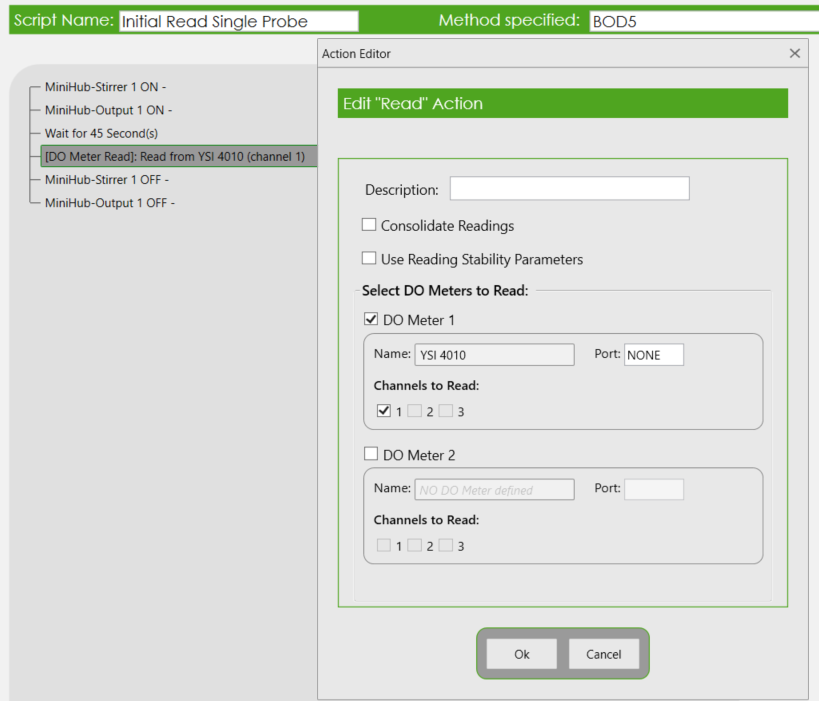
- Click on the ‘use Reading Stability Parameters‘ checkbox to enable the stability options feature.
- ΔDO: Change in Dissolved Oxygen.
- ΔT: Change in Time.
- Max Time: Maximum duration (i.e. Timeout).
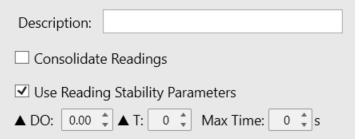
- MANTECH recommends the following Set Time stability settings shown below. Therefore, Max Time could be set based on this information, if the DO stability did not meet the configured stability criteria:
- Optical Probe: Initials 45 seconds, Finals 90 seconds
- Membrane Probe: Initials/Finals 45 seconds
- After entering in the desired values, click OK.
- Important Note: The set time of 45 seconds or 90 seconds above the DO read action should be removed. If it is not removed, the sequence will wait the set time, and then enter into the DO stability settings configured above. Click Save Script once completed.
- Repeat steps 3-9 for Finals.
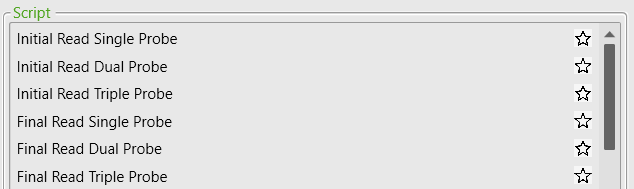
- Now, the main BOD sequence needs to be updated with these new read sequences. Click Load and find the main sequence used in standard operating BOD runs (Hint: The sequence might be favorited for easier referencing).
- Expand the Logic Condition ‘If (Processing Initials) Else‘ to expose the current read scripts.
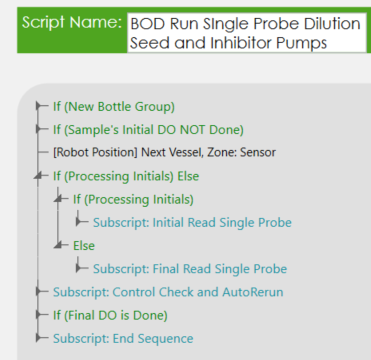
- Before removing the current scripts, it is easier to insert the new read scripts. Select the current read subscript first, then in the Dropdown menu beside Action, select Subscript. Then, click the Insert button. Select the respective read subscript.
- It is important that the script designated for Initials and Finals is added into the correct section of this Logic condition.
- The If holds the Initials read script sequence
- The Else holds the Finals read script sequence.
- After adding in the new read sequences, remove the previous scripts by selecting the script and using the Delete Scripts button.
- Click Save when completed.
Need assistance? Contact our technical support team here.
How do I setup a run in BOD Pro Software™ in which a bottle was pre-filled with dilution water or seed?
Procedure:
- Navigate to Template/Run Screen Settings.
- The main Run Screen adjusted will be the Initial BOD (i.e. Run Initials).
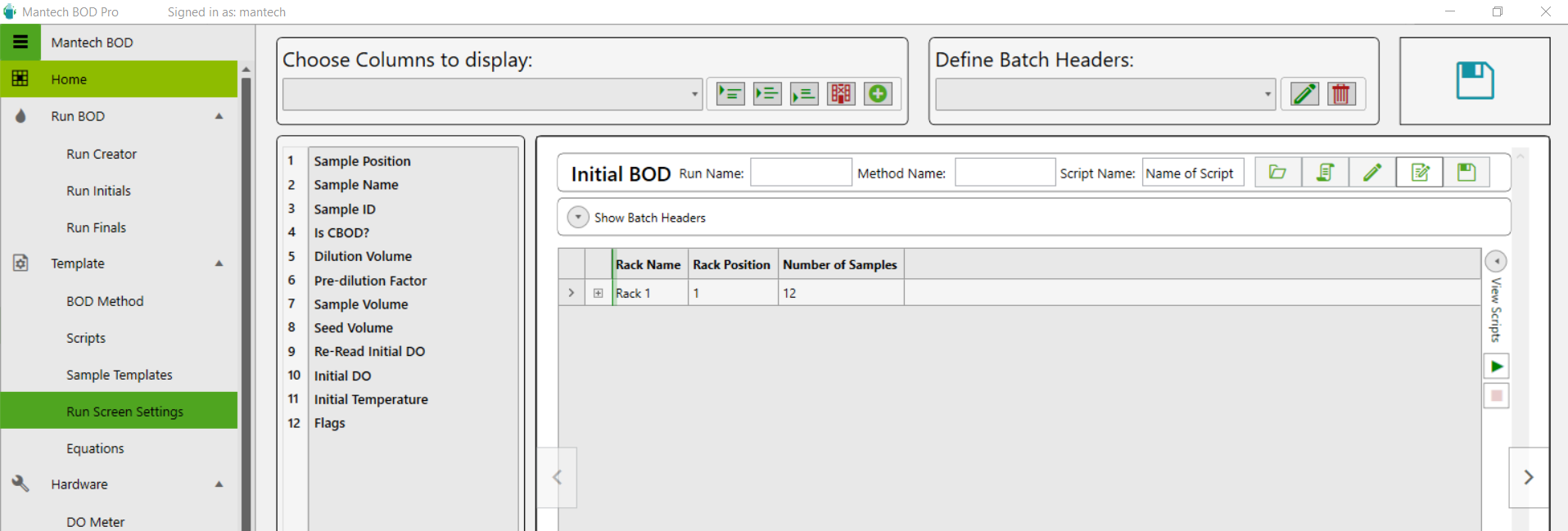
- The main Run Screen adjusted will be the Initial BOD (i.e. Run Initials).
- At the top, under the section called Choose Columns to display, there is a dropdown menu that will list all the possible columns that could appear on the Initials run screen. Locate ‘Dilution Added?’ and ‘Seed Added?’.
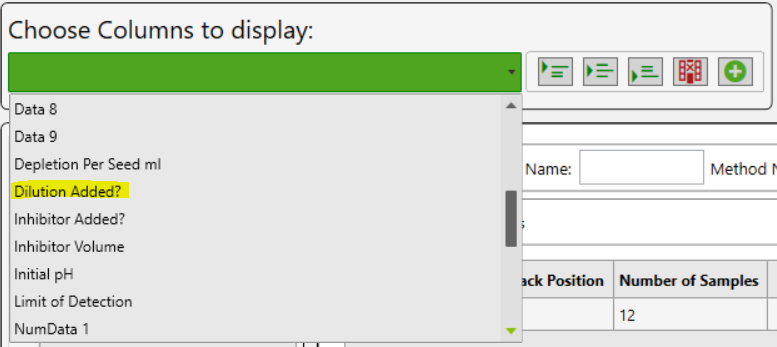
- Use any of the three options to insert into the list of columns down below.
- The column can be selected, then dragged into the desired position.

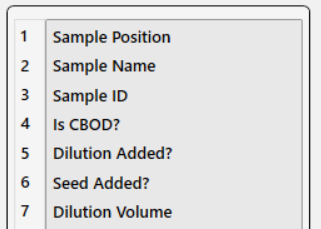
- The column can be selected, then dragged into the desired position.
- Repeat for all desired columns, and then click Save located on the top right of the screen.
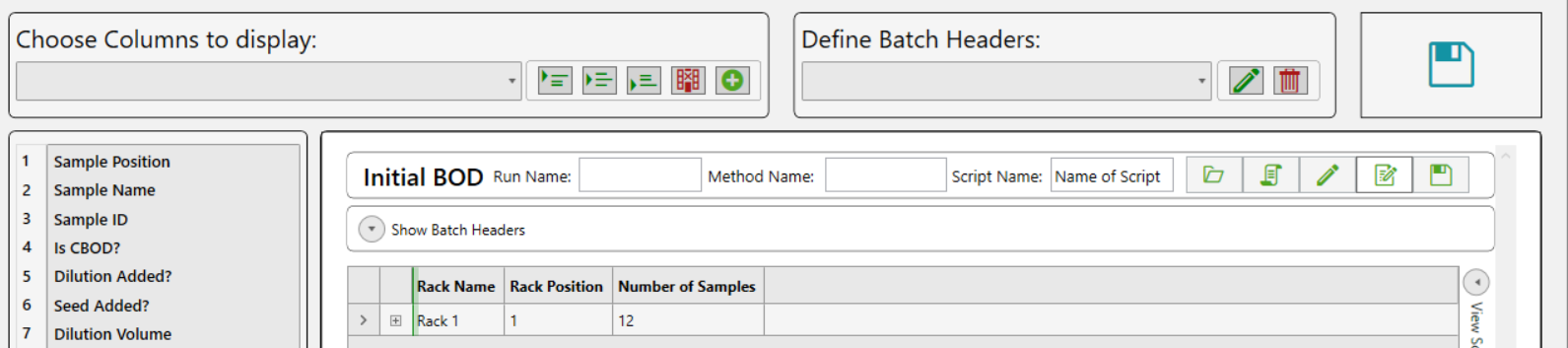
- Runs loaded on the Run Initials Screen will display the new additional columns. Simply check the checkbox if one or all of the reagent options were dispensed/pre-filled in the bottle.

Need assistance? Contact our technical support team here.
Hardware
My DO meter isn’t communicating to BOD Pro Software™. Is there a way to reset it?
First, confirm the correct COM port is selected. If this does not work, you will need to the reset the meter’s firmware. For step-by-step instructions, view PDF here.
MANTECH Pro Software™
How to add gran alkalinity method to MANTECH Pro Software™?
Follow this step-by-step PDF on adding gran alkalinity method to MANTECH Pro Software™.
Is PC-Titrate software compatible with Windows 10 or Windows 11 Pro OS?
As a result of major security updates Microsoft has implement, MANTECH cannot guarantee that PC-Titrate will operate with updates in Windows 10 or 11 Pro operating systems. PC-Titrate can operate in virtual mode however, this leaves the analyzer vulnerable to viruses (leading to corrupted databases) and could impact the software when Windows updates are performed. Here is some more information about everything you need to know before updating to Windows 10…read more. In 2021, MANTECH introduced a line of all new hardware and MANTECH Pro Software™ designed for Windows 10 and 11 Pro OS – meaning that all security and OS updates can run concurrently.
There are a few different options to move forward:
- Install PC-Titrate on Windows 10 computer (no guarantee).
- Upgrade the software to MANTECH Pro Software™ which is backwards compatible with most hardware.
- Replace the entire system (all new hardware and software) with a trade-in discount for your existing system.
To discuss your options, please contact our team here.
How many cables and what kind are required to connect and MT30 system to the computer?
MANTECH Pro Software™ requires at least 4 USB cables on the computer. This is not including the computer’s mouse or keyboard. When required, the system will include a 4-port USB hub. Please see Technical Bulletin 2023-012 for a complete list of the minimum computer requirements.
How to perform a meter calibration for conductivity?
MANTECH Pro Software™ automatically performs a single-point calibration without requiring the USER to interact with the meter. A calibration method will not be required. Before running your calibration script, ensure that the meter settings is configured with your probe.
The following steps will outline how to calibrate the meter:
For Automated systems
- Add in your tray file, rinsing, move to tube location and jogging movement steps, prior to the calibration step.
- Add a ‘Timing’ action of 30 seconds. This will allow the meter to stabilize the conductivity reading.
- Add the ‘Conductivity Meter Calibrate’ action and select the conductivity meter configured in Hardware Setup.
- Complete the script, configure the Run Configuration table, and click ‘Go to Run’ to start the meter calibration.
For Manual systems
- Select ‘Misc.’ and type in instructions for analyst to manually dip the probe into the standard solution 3 times.
- Make sure to let the probe rest inside the solution and click ‘OK’ when stabilization icon appears on the Meter.
- Add the ‘Conductivity Meter Calibrate’ action and select the conductivity meter configured in Hardware Setup.
- Complete the script, configure the ‘Run Configuration’ table, and click ‘Go to Run’ to start the meter calibration.
How do I calibrate the flowrate of an IntelliPump™ (peristaltic pump) in MANTECH Pro Software™?
Procedure:
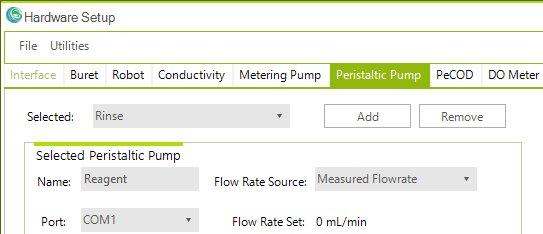
- Navigate to Hardware/Hardware Configuration/Peristaltic Pump.
- If there are multiple peristaltic pumps on your instrument, ensure the correct pump is selected from the drop down menu. Ensure the Flow Rate Source is Measured Flowrate.
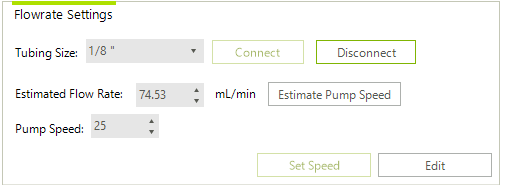
3. Select the Tubing size associated with the pump selected. Enter in a desired flowrate and click Estimate Pump Speed to automatically generate a speed that would be optimal to dispense the desired flow per minute. Next, click Set Speed.
- Note: The tubing size refers the tube’s inner diameter.
- Entering a pump speed instead would automatically generate an estimated flow rate.
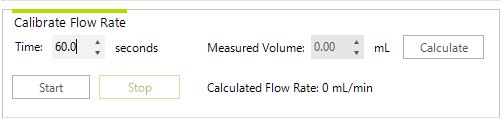
4. Enter in the desired duration to operate the pump for, and then click Start. Note: Ensure the pump line is primed with solution before starting your flowrate test.
5. After the timer has counted down and the pump has dispensed solution, typically the test is repeated at least 3 times, and the averaged volume is calculated. Enter the averaged volume into the field called “Measured Volume”, then click Calculate. This will update the flowrate of the pump:
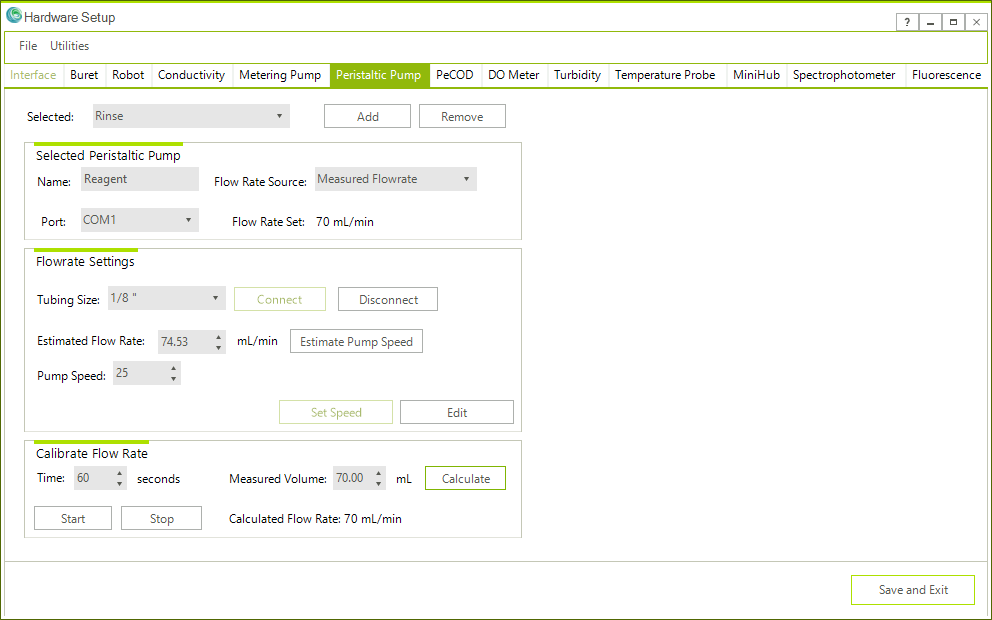
6. Click Save and Exit when finished.
Need assistance? Contact our technical support team here.
PeCOD®
How do I change the C value settings in MANTECH Pro Software™ and PeCOD Pro?
MANTECH now has a new PeCOD® sensor recipe that allows for more sample sensitivity. With this change, a parameter will need to be updated for use. The C value on the calibration and new sensor settings will no longer need to have an upper limit as the more sensitive burn on the sensor increases the C value. Click here to view a PDF on how to change your C value settings in PeCOD Pro and MANTECH Pro Software™.
How do I edit PeCOD® Parameters in MANTECH Pro Software™?
For a video tutorial on changing PeCOD® parameters in MANTECH Pro Software™, click here.
How do I edit the passing criteria for a QC Regime in MANTECH Pro Software™?
For a video tutorial on changing the passing criteria for a QC regime in MANTECH Pro Software™, click here.
Get Smarter Solutions, Today.
Our innovative water and wastewater analyzers have faster, safer processes, with fewer hazardous reagents. Start using MANTECH solutions for more accurate data that drives responsible outcomes.